
Difference between revisions of "Documents (Client)"
(→Editing{{Version/WinXSince|2.5.4}}) |
(→Image Editor) |
||
| (7 intermediate revisions by the same user not shown) | |||
| Line 12: | Line 12: | ||
== Viewing Documents == | == Viewing Documents == | ||
| − | Available Documents can be viewed in the documents tab of the current object, they are displayed with a thumbnail preview. | + | Available Documents can be viewed in the documents tab of the current object, they are displayed with a thumbnail preview. On WinX, the display mode for documents can be configured by selecting the corresponding button; available display modes are: <br> |
| − | + | [[File:DocumentView_DisplayMode.png|thumb|Display mode selection (WinX)]] | |
| − | + | ||
| − | + | ||
| − | + | ||
| − | + | ||
| − | + | ||
| − | On WinX, the display mode for documents can be configured; available display modes are: <br> | + | |
* Gallery View (default) | * Gallery View (default) | ||
* List View | * List View | ||
* Flip View | * Flip View | ||
| − | |||
| − | |||
| − | <br>Clicking on a document navigates to the corresponding object and opens the internal document viewer. | + | <gallery widths="400" heights="350"> |
| − | <gallery widths="400" heights="400"> | + | File:DocumentView_WinX.png|Thumbnail preview on WinX |
| + | File:DocumentView_MAUI.jpeg|Thumbnail preview on Mobile (iOS) | ||
| + | </gallery> | ||
| + | |||
| + | <br>Clicking on a document thumbnail navigates to the corresponding object and opens the internal document viewer. | ||
| + | A document can also be viewed by right-clicking on the object's thumbnail (WinX). This will open the document in an external editor provided by the operating system. | ||
| + | To open the document externally on the mobile client, the left-swipe functionality on the document object can be used to reveal the "open external" button. | ||
| + | |||
| + | <gallery widths="400" heights="80"> | ||
| + | File:EditingMAUI.jpeg|Open external button in the document item's left-swipe menu (Mobile Client) | ||
| + | </gallery> | ||
| + | <gallery widths="400" heights="350"> | ||
File:DocumentViewer_WinX.png|Document Viewer on WinX Client | File:DocumentViewer_WinX.png|Document Viewer on WinX Client | ||
File:DocumentViewer_MAUI.jpeg|Document Viewer on Mobile Client (iOS) | File:DocumentViewer_MAUI.jpeg|Document Viewer on Mobile Client (iOS) | ||
</gallery> | </gallery> | ||
| − | + | ||
| − | + | ||
=== Viewing or Editing the Object Data === | === Viewing or Editing the Object Data === | ||
| Line 39: | Line 41: | ||
Not only the file itself can be viewed, but also the {{UBIK}} property values of a document object. The way properties are displayed depends on the client being used. On the '''WinX''' client, the properties are shown directly on the right side of the document viewer. On the '''Mobile''' client, you need to switch to the Properties tab to view them. | Not only the file itself can be viewed, but also the {{UBIK}} property values of a document object. The way properties are displayed depends on the client being used. On the '''WinX''' client, the properties are shown directly on the right side of the document viewer. On the '''Mobile''' client, you need to switch to the Properties tab to view them. | ||
| − | <gallery widths=" | + | <gallery widths="200" heights="350"> |
File:Properties_WinX.png|Document properties on WinX | File:Properties_WinX.png|Document properties on WinX | ||
File:Properties_MAUI.jpeg|Document properties on Mobile (iOS) | File:Properties_MAUI.jpeg|Document properties on Mobile (iOS) | ||
| Line 82: | Line 84: | ||
After clicking “Annotation Tools”, the toolbar expands and provides several options for annotating the document, such as drawing freeform shapes, adding comments, selecting different colors ... | After clicking “Annotation Tools”, the toolbar expands and provides several options for annotating the document, such as drawing freeform shapes, adding comments, selecting different colors ... | ||
| − | <gallery widths="400" heights=" | + | <gallery widths="400" heights="50"> |
| − | File:Annotation_WinX.png|WinX | + | File:Annotation_WinX.png|Annotation toolbar on WinX |
| − | File:Annotation_MAUI.jpeg|Mobile (iOS) | + | File:Annotation_MAUI.jpeg|Annotation toolbar on Mobile (iOS) |
</gallery> | </gallery> | ||
| − | |||
The previous redlining number indicators are replaced by the [[Child_Document_Indicator_(Android)|child document indicators]]. {{Version/AndroidSince|2.4.5}} | The previous redlining number indicators are replaced by the [[Child_Document_Indicator_(Android)|child document indicators]]. {{Version/AndroidSince|2.4.5}} | ||
| Line 95: | Line 96: | ||
For [[SYSCLS_EDITABLEDOCUMENT|editable documents]], there is an {{key press|edit}} button in the top app bar. It allows the user to edit a document file using the default app of the OS. If a file is changed during the edit, the same {{key press|save}} button appears just like it does for content with changed properties. | For [[SYSCLS_EDITABLEDOCUMENT|editable documents]], there is an {{key press|edit}} button in the top app bar. It allows the user to edit a document file using the default app of the OS. If a file is changed during the edit, the same {{key press|save}} button appears just like it does for content with changed properties. | ||
{{Hint|Similar to saving, other app features also apply on edited documents. For example, reverting local changes for an edited document will throw away the changed document file and restore it to the server version.}} | {{Hint|Similar to saving, other app features also apply on edited documents. For example, reverting local changes for an edited document will throw away the changed document file and restore it to the server version.}} | ||
| − | An alternative way to start editing is to right click on a document's thumbnail or clicking on the "open external" button inside of the document viewer, which immediately opens the document in an external editor | + | An alternative way to start editing is to right click on a document's thumbnail or clicking on the "open external" button inside of the document viewer, which immediately opens the document in an external editor. The difference here is that there is no {{key press|save}} button and any changes are automatically saved (and committed if in online mode). |
| − | + | <gallery widths="350" heights="50"> | |
| − | + | File:DocumentViewerButton_WinX.png|Open external button on WinX Client | |
| + | </gallery> | ||
[[Category:Android|Documents (UBIK Android)]] | [[Category:Android|Documents (UBIK Android)]] | ||
| Line 108: | Line 110: | ||
== Image Editor == | == Image Editor == | ||
| − | In {{UBIK}}, images can be edited using the UBIKImageEditor. When | + | In {{UBIK}}, images can be edited using the UBIKImageEditor. When navigating to an image object, the image editor opens automatically if configured. |
| − | <gallery widths="400" heights=" | + | <gallery widths="400" heights="350"> |
File:ImageEditor_WInX.png|ImageEditor on WinX Client | File:ImageEditor_WInX.png|ImageEditor on WinX Client | ||
File:ImageEditor_MAUI.jpeg|ImageEditor on Mobile Client (iOS) | File:ImageEditor_MAUI.jpeg|ImageEditor on Mobile Client (iOS) | ||
Latest revision as of 12:21, 17 March 2026
Documents are UBIK® objects referencing a file, e.g. a PDF document. Like other UBIK® objects, they can be synchronized to the UBIK® client. UBIK® supports and displays document objects and a bunch of actions related to them, including e.g. editing, redlining, creation, and thumbnails.
Contents
Document Types
- Managed Document - Documents with a locally managed file.
- Linked Document - Documents with a file linked by an URL, not locally managed by UBIK®.
Viewing Documents
Available Documents can be viewed in the documents tab of the current object, they are displayed with a thumbnail preview. On WinX, the display mode for documents can be configured by selecting the corresponding button; available display modes are:

- Gallery View (default)
- List View
- Flip View

Thumbnail preview on WinX

Thumbnail preview on Mobile (iOS)


Clicking on a document thumbnail navigates to the corresponding object and opens the internal document viewer.
A document can also be viewed by right-clicking on the object's thumbnail (WinX). This will open the document in an external editor provided by the operating system.
To open the document externally on the mobile client, the left-swipe functionality on the document object can be used to reveal the "open external" button.
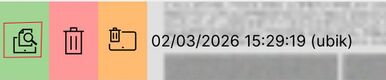
Open external button in the document item's left-swipe menu (Mobile Client)

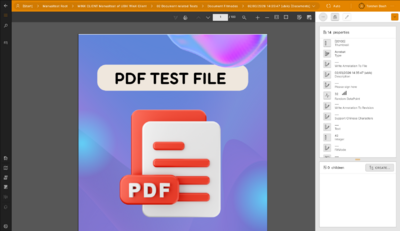
Document Viewer on WinX Client
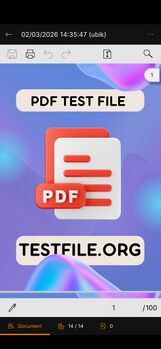
Document Viewer on Mobile Client (iOS)


Viewing or Editing the Object Data
Not only the file itself can be viewed, but also the UBIK® property values of a document object. The way properties are displayed depends on the client being used. On the WinX client, the properties are shown directly on the right side of the document viewer. On the Mobile client, you need to switch to the Properties tab to view them.

Document properties on WinX
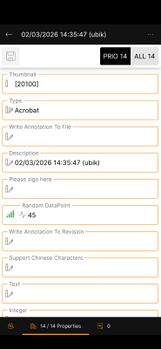
Document properties on Mobile (iOS)


Creating Documents
Depending on the configuration of the UBIK® data model and the ACM, documents can be created as children for existing objects. Via the context menu entry you can create such documents. (where it is configured)
 | File extensions are case-sensitive depending on the OS. On iOS and Android, file systems are case-sensitive, while on Windows, file systems are case-insensitive. |
Taking a Picture
In certain cases, the camera can be used to take a picture and create a document for it - in this case, another "Take Picture" context menu entry is available.
Editing and Submitting the newly created Document
After either a document was chosen or a picture was taken, the newly created object is opened in a property view, allowing the user to abort the creation or to enter specific property values (e.g. for the description of the object) and finally save the object.
uploaded Document objects can potentially contain detailed Information concerning the original file (e.g. file name, path)
File upload
Regarding the file upload, there is a mechanism FileUploadRestriction that ensures files only get uploaded if the file size is below the configured max upload size.
Synchronization
Depending on the connectivity mode, the next synchronization run will bring the new content and file to the server.
Modify Documents
Redlining
Redlining is the process of creating a modified or annotated version of an existing document.
To use this feature, click the “Annotation Tools” button in the document viewer toolbar at the top of the document.
After clicking “Annotation Tools”, the toolbar expands and provides several options for annotating the document, such as drawing freeform shapes, adding comments, selecting different colors ...

Annotation toolbar on WinX

Annotation toolbar on Mobile (iOS)


The previous redlining number indicators are replaced by the child document indicators.
Editing

For editable documents, there is an edit button in the top app bar. It allows the user to edit a document file using the default app of the OS. If a file is changed during the edit, the same save button appears just like it does for content with changed properties.
 | Similar to saving, other app features also apply on edited documents. For example, reverting local changes for an edited document will throw away the changed document file and restore it to the server version. |
An alternative way to start editing is to right click on a document's thumbnail or clicking on the "open external" button inside of the document viewer, which immediately opens the document in an external editor. The difference here is that there is no save button and any changes are automatically saved (and committed if in online mode).

Open external button on WinX Client

Image Editor
In UBIK®, images can be edited using the UBIKImageEditor. When navigating to an image object, the image editor opens automatically if configured.
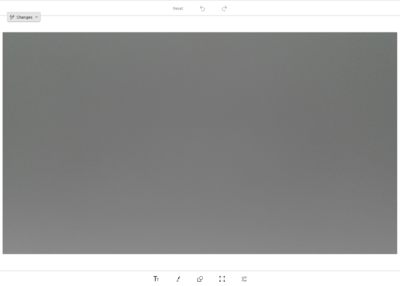
ImageEditor on WinX Client
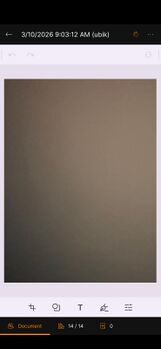
ImageEditor on Mobile Client (iOS)


PDF Documents
PDF Renderers
The Syncfusion PDF control embedded in the WinX client can use two different renderers to render and display PDF documents.
- The standard Syncfusion renderer which uses Windows.Data.PDF
- PDFium
There can be issues for each renderer when dealing with certain documents. If that's the case, you can try changing the PdfRenderer setting in the WinX client and see if the issue still persists.
| Generally speaking, the PDFium renderer seems to be more performant in the majority cases. That's why it is the default option. |
Syncfusion
When using this renderer, we have experienced an issue with certain PDF diagrams where certain texts change when you zoom in on the documents. Unfortunately, we are unaware of the reason of this issue and could not find public documentation on similar problems.
PDFium
- This renderer currently does not support digital signatures (e.g. created by Docusign) unless they are flattened into the PDF documents.
- With this renderer selected, some documents in the Flip View might appear blank when zooming.
PDF Text Search
It is possible to search and highlight arbitrary texts in the UBIK® PDF viewer. By clicking the magnifier button, an input field opens to search for specific text entries in the document. The results will be highlighted in the PDF file. By clicking the arrow buttons, it is possible to switch to the next and previous results.
Automatic Text Search
Using the Document Highlighting Classification A PDF document can search for a defined search term from its parents properties automatically as soon as it is being navigated to.
Remember Document Settings
By default, PDFViewer settings are not saved and always reset when reloading a document. The Remember Document Settings feature enables the automatic saving & preserving of the Zoom level, Annotation color, and Stroke width value within a UBIK® session. It can be configured in the Settings. With this feature enabled, the PDFViewers Annotation color, Zoom level, and Stroke width value set by the user will be saved and preserved until the user changes them again.
If a document is configured with the Auto Zoom classification, it will be overruled by the user's value as soon as the user sets it. If an AnnotationDefaultStrokeWidth value is configured, it will be overridden by the user's value as soon as the user sets it.
| Saving the Zoom value with touch gestures is not supported. But the SaveZoomSettingsCommand can be used to save the Zoom value manually. |
The SaveZoomSettingsCommand can be applied to a button as follows:
Name="pdfViewer"
... />
<Button
Content="Save Zoom"
Command="{Binding ElementName=PdfViewer, Path=SaveZoomSettingsCommand}" />
Fit Mode
By default, documents are displayed in their original dimensions. But administrators can also configure different fit modes for each document. The following demonstrates how documents can look under different fit modes.
| Unspecified / Unscaled / Default | Fit to container | Fit to width | |
|---|---|---|---|
 |
 |

|
| When using a FlipView for documents in your customized XAMLs, you need to additionally apply the fit mode by yourself. |
| This feature currently only works for PDFs (it is not supported for Images). |
Auto zoom
When a PDF document is displayed in UBIK, it's possible that an initial zoom level is configured and applied to that document.
| The configured initial zoom level will be simply ignored if it's beyond the acceptable min/max zoom levels of the PDF viewer. |
Offline/Online
Offline availability
When a user selects a branch to bring offline, files of all document objects underneath are downloaded in principle. However, they can also be selectively configured to be ignored with a classification on the server-side. Once a document is classified as offline available, the document file will not be removed when the storage for already synchronized document files is cleared.
| This is not to be confused with the accessibility related to user rights. The logic here is "some documents do not have to be downloaded", not "some documents can not be downloaded/accessed". In other words, a user can browse to and open the document regardless of this configuration. |
Clear Online Documents
By clearing the online documents, it is possible to free up system memory if needed. It can be triggered by pressing the button "Clear online documents" in the general settings tab. Online documents are documents already uploaded to the server. They can be downloaded anytime again when the client is connected to the server. However, documents classified as offline available will not be affected and will always stay on the device.
See also
- Create a new Document (UBIK Android)
- Make a Document ready for Redlining
- SYSCLS DOCUMENT (Classification)
- SYSCLS FILEDOCUMENT (Classification)
- SYSCLS EDITABLEDOCUMENT (Classification)
- SYSCLS REDLINEDFILE (Classification)
- SYSCLS DOCUMENT HIGHLIGHTING CLASSIFICATION (Classification)
- SYSCLS URLDOCUMENT (Classification)
- SYSCLS THUMBNAILEDDOCUMENT (Classification)
- SYSCLS TEXTDOCUMENT (Classification)
- SYSCLS OFFLINE AVAILABLE DOCUMENT (Classification)
