
Configure UBIK Archon Service
The UBIK.Archon WebService is the central information hub that is responsible for managing the set of available licenses for one subscription This page describes how to setup the system.
Contents
Overview
- Make sure the USAM is installed on the IIS Server.
- Install the UBIK Archon Webservice on the IIS Server.
- If the IIS Server does not have it installed, download and install the .NET 8.0 Hosting Bundle from Microsoft. This bundle includes the .NET Runtime and the ASP.NET Core Runtime required for hosting ASP.NET Core applications on IIS.
- Make sure the URL Rewrite Module is installed on the IIS Server.
- Make sure all files are accessible
Installation UBIK Archon
- Download the UBIK Archon Webservice from the release portal.
- Deploy the UBIK Archon Webservice to the designated web app folder on the IIS Server (web app folder needs to be created if necessary)
- IIS Manager setting check: see IIS Manager
IIS Manager
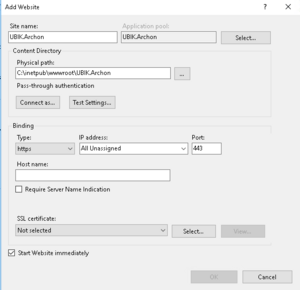
- Add a new website under the "Sites" folder in IIS Manager.
- "Site Name", "Application pool", "Physical path", "Binding", "Host Name", "Port" and "SSL Certificate" should be adapted accordingly.
- Example settings.

 | When setting up the IIS Application Pool responsible for the Archon Service the Load User Profile setting must be set to "true". This way Archon can create the necessary files under the specified User in the File System |
Setting up UBIK Archon
Firewall settings
Firewall and Router settings must adapted so the Archon service can be accessible from outside of the IIS Server
- A New Inbound rule must be created in the IIS Server "Firewall Settings", using the same "Port" as the one specified in the website "Binding" settings.
- A new Port forwarding rule must also be added in the Router "Firewall Settings" using the same "Port" as the one specified in the website "Binding" settings.
Secret
The secret must be defined once for an Archon Service. Even if the secret can be defined implicit by the very first time an USAM registers at the Archon we recommend to define the secret in advance using the following URL:
USAM
The UBIK Archon URL must be configured in the USAM's AppSettings.config file, e.g.:
<add key="UBIK.Service.ArchonUrl" value="https://hostname:port/api"/>
</appSettings>
Connecting UBIK Archon with USAM
The UBIK Archon service has to be connected to the USAM service. This must be done only once for each Database. This can be achieved using a URL schema, the user has to provide hostname:port/path to Usam service/ the method "register" and a couple of parameters. The list of parameters differ in newer Ubik Versions.
Parameters until Version 4.9
- Parameter "secret": The "secret" is the password selected by the Archon Administrator.
Example:
The following example URL registers the UBIK Archon service on the USAM and the USAM on the Archon service:
Parameters since Version 5.0
- Parameter USAM-Name: human readable name of the USAM service. We recommend to use the name of the Usecase (e.g. "Productive System").
- Parameter License - Mode: The license mode defines how a license is evaluated by the Archon for the given USAM :
| Value | Mode | Description |
|---|---|---|
| 0 | Standard | Archon compares Login Name and Device - ID. |
| 1 | Login | Archon compares Login Name only. The Device ID will be ignored. |
| 2 | Device | Archon compares Device ID only. The Login Name will be ignored. |
- Parameter "secret" (the "secret" is the password selected by the Archon Administrator).
Example:
The following example URL registers the UBIK Archon service on the USAM and the USAM on the Archon service:
| One USAM can only be registered once. If you want to register it again or use a different Archon Service you need to unregister it first. |
| A registration key is saved encrypted in the UBIK Database (as setting). |
Disconnecting an USAM from the Archon
There is also the possibility to unconnect the USAM service from the Archon Service.
Using UBIK Archon
Archon
Archon Web UI
Using swagger a test Web UI can be accessed.
- Example:
How to fetch unique Archon Id
- Example using Postman Get:
USAM
Session Details
The UBIK Archon service can provide detailed Session Information. Session details can be called using a web service method and will provide additional information about the currently active sessions:
- How many users were logged in,
- on which day,
- with how many sessions,
- how many users were online simultaneously,
- and average session duration.
Example:
[
{
"AverageSessionDuration": 2,
"Concurrent": 7,
"Day": "/Date(1718056800000+0200)/",
"Logins": 25,
"Sessions": 48
}
]
Archon cannot be contacted
One of the most common reasons for being unable to contact the Archon or register a USAM is the WebDAV Publishing module, which may be preinstalled on the IIS server. This module interferes with the requests sent by the Archon, preventing certain methods from executing correctly. You can verify whether WebDAV is installed by checking the Server Manager on the IIS machine.
To prevent this interference, you must explicitly disable WebDAV in the Archon’s web.config file.
<modules>
<remove name="WebDAVModule" />
</modules>
</system.webServer>
However, it’s very important to note that adding this configuration when the WebDAV module is not installed can also cause communication issues with the Archon. For that reason, only apply this configuration if you have confirmed that the WebDAV module is actually present on the IIS server.
