(→Work Progress) |
|||
| (5 intermediate revisions by the same user not shown) | |||
| Line 1: | Line 1: | ||
[[File:MRO_WinX.png|thumb|alt=MRO Child List UI (WinX)|MRO UI (WinX)]] | [[File:MRO_WinX.png|thumb|alt=MRO Child List UI (WinX)|MRO UI (WinX)]] | ||
| − | [[File:MRO_MAUI1.jpeg|thumb|alt=MRO Child List UI ( | + | [[File:MRO_MAUI1.jpeg|thumb|alt=MRO Child List UI (Mobile)|MRO UI (Mobile)]] |
| − | + | ||
| − | + | The WinX and Mobile clients display MRO objects like other root or child objects, with additional MRO-specific indicators, controls, and evaluation logic. | |
| − | The | + | |
| − | + | This page documents behaviour that is shared by multiple MRO objects in the clients. The MRO object model, task-specific behaviour, and relevant technical properties are documented on [[MRO (Plugin)]]. For the complete task-type catalog, see [[MRO (Plugin)#MRO Task Types|MRO Task Types]]. | |
| − | + | {| class="wikitable" | |
| + | |- | ||
| + | ! Page !! Scope | ||
| + | |- | ||
| + | | [[MRO (Plugin)]] || MRO concepts, task types, task-specific behaviour, and relevant technical properties | ||
| + | |- | ||
| + | | '''MRO Objects (Client)''' || Common client presentation, status indicators, locking, and behaviour shared by multiple MRO objects | ||
| + | |} | ||
| − | + | == Basic User Interface == | |
| − | + | The MRO user interface provides status indicators and interactive controls. In the {{UBIK}} child list, an MRO object can display its accumulated technical status, organisational status, and overall work progress based on its underlying data branch. These indicators are shown next to the main icon on child, details, and documents pages as well as next to the icons of child-list items. | |
| − | The | + | |
| − | + | ||
| − | + | ||
| − | + | ||
| − | + | ||
| − | + | ||
| + | === Technical Status === | ||
| + | The technical status indicator is shown on objects that represent a technical state or receive the technical status from subsequent objects in the underlying data branch. For example, if an inventory object is reported as damaged, its parent objects display an exclamation-mark indicator to show that a problem was reported by a child object. | ||
| + | [[File:TechStats_WinX.png|100px|Technical Status Indicator (WinX and Mobile)]] | ||
| + | === Organisational Status === | ||
| − | + | The organisational status represents the amount of confirmed work in the data branch. This includes confirmed Work Packages as well as Tasks that are locked by their owning Work Package. The indicator is shown on objects that represent an organisational state or receive the organisational status from subsequent objects. | |
| − | + | ||
| − | + | ||
| − | The | + | |
| − | + | ||
| − | + | ||
| − | + | ||
| − | + | ||
| − | + | ||
| − | + | ||
| − | + | ||
| − | + | ||
| − | + | ||
| − | + | ||
| − | + | ||
| − | + | ||
| − | + | ||
| − | + | ||
| − | + | ||
| − | + | ||
| − | + | ||
| − | + | ||
| − | + | ||
| − | + | ||
| − | + | ||
<gallery> | <gallery> | ||
| − | File: | + | File:OrgaStatusIndicatorWinX.PNG|Organisational Status Indicator (WinX) |
| − | File: | + | File:ConfirmedWP_WinX.png|Confirmed Work Package flag (WinX) |
| − | File: | + | File:ConfirmedWP_MAUI.jpeg|Confirmed Work Package indicator (Mobile) |
| − | + | ||
</gallery> | </gallery> | ||
| − | === | + | === Work Progress === |
| − | + | ||
| − | + | Work progress is calculated from the object's current progress and the progress accumulated from subsequent objects in the underlying data branch. The indicator shows the amount of work completed in that branch. | |
| + | {{Version/WinXSince|5.0}} {{Version/MobileSince|5.0}} By default, progress is displayed with no more than one decimal place. For example, 99.75% is displayed as 99.8%. The format string used for this is <code>{0:0.#}%</code>. | ||
| + | For other numeric formats, see [https://learn.microsoft.com/en-us/dotnet/standard/base-types/custom-numeric-format-strings custom numeric format strings]. The template used to customize the presentation is '''UBIKMROProgressBadge''' in '''UBIKThemes'''. | ||
| − | |||
| − | |||
| − | |||
| − | |||
| − | |||
{{Clear}} | {{Clear}} | ||
| − | + | [[Category:Android|MRO Objects (UBIK WinX)]] | |
| − | + | [[Category:Client|MRO Objects (Client)]] | |
| − | + | [[Category:Mobile|MRO Objects (Client)]] | |
| − | + | [[Category:Pages with broken file links|MRO Objects (Client)]] | |
| − | + | [[Category:WinX|MRO Objects (UBIK WinX)]] | |
| + | == MRO Objects == | ||
| + | The MRO object model consists of Task Owners, Work Packages, Tasks, and specialized task types. For the object definitions and technical properties, see [[MRO (Plugin)#MRO Objects|MRO Objects]]. | ||
| + | === Task Owner === | ||
| + | A [[MROCLS_MRO_TASKOWNER|Task Owner]] gives users an overview of the work in its underlying structure. The client displays the technical status, organisational status, and work progress accumulated from its subordinate Task Owners and Work Packages. | ||
| − | + | For the Task Owner definition, see [[MRO (Plugin)#Task Owner|Task Owner]]. | |
| − | + | === Work Package === | |
| − | + | The clients provide controls for confirming and revoking the confirmation of a [[MROCLS_MRO_WORKPACKAGE|Work Package]]. A Work Package can be confirmed when its related Tasks have reached the required progress and all subordinate Work Packages have been confirmed. | |
| − | + | ||
| − | <gallery | + | <gallery> |
| − | File: | + | File:ConfirmingWP_WinX.png|Work Package confirmation button (WinX) |
| − | File: | + | File:MRORevoke_WinX.png|Revoke Work Package confirmation (WinX) |
| + | File:ConfirmingWP_MAUI.jpeg|Work Package confirmation button (Mobile) | ||
| + | File:MRORevoke_MAUI.jpeg|Revoke Work Package confirmation (Mobile) | ||
</gallery> | </gallery> | ||
| + | For the Work Package definition, see [[MRO (Plugin)#Work Package|Work Package]]. | ||
| + | === Task === | ||
| + | A [[MROCLS_MRO_TASK|Task]] reports progress to its owning Work Package. All user-editable MRO Tasks support ''Not Applicable''. In both clients, a completed user-editable Task can be reset by selecting ''Not Applicable'' twice. | ||
| + | For the common Task model and value-validation requirement, see [[MRO (Plugin)#Task|Task]]. | ||
| − | + | {{Hint|For the complete list of MRO task types, their properties, and their task-specific client behaviour, see [[MRO (Plugin)#MRO Task Types|MRO Task Types]]. For the available Procedure variants and their workflow execution, see [[MRO (Plugin)#Procedure Task Variants and Workflow Execution|Procedure Task Variants and Workflow Execution]].}} | |
| − | + | ==== Sequential Task ==== | |
| − | + | ||
| − | + | The [[MROCLS_SEQUENTIALTASK|Sequential Task classification]] defines an order in which Tasks are to be completed. One or more predecessor Tasks can be required to finish before a dependent Task becomes unlocked and editable. A Task can have any number of predecessors. | |
| − | + | ||
| − | + | ||
| − | + | ||
| + | A Task and its predecessors do not have to belong to the same Work Package. A predecessor can be located elsewhere in the object hierarchy. | ||
| + | The state of a Sequential Task is evaluated both online and offline. This allows visible dependent Tasks to update immediately when their predecessors are finished. The server-side state takes precedence in the case described by the first step below. | ||
| + | The state is evaluated as follows: | ||
| + | # If the server-side state says that the Task is open, it is treated as open and no further local evaluation is performed. | ||
| + | # The client checks whether the Task has predecessors. | ||
| + | # The client attempts to load every predecessor Task. | ||
| + | #* If any predecessor cannot be loaded because it is not available offline, the Task is locked. | ||
| + | # If every predecessor is finished, the Task is open and editable. Otherwise, it is locked. | ||
| − | + | The configured dependency graph must not contain cycles. Tasks within a dependency cycle could never become available for completion. | |
| − | + | ||
| − | + | ||
| − | + | ||
| − | + | ||
| − | + | ||
| − | + | ||
| − | + | ||
| − | + | ||
| − | + | ||
| − | + | ||
| − | + | ||
| − | + | ||
| − | + | ||
| − | + | ||
| − | The | + | |
| − | + | ||
| − | + | ||
| − | + | ||
| − | + | ||
| − | + | ||
| − | + | ||
| − | + | ||
| − | + | ||
| − | + | ||
| − | + | ||
| − | + | ||
| − | + | ||
| − | + | ||
'''Example''' | '''Example''' | ||
| − | + | See [[Media:Sequential_tasks_winx.mp4|this video]] for a demonstration. The Task relations are illustrated in [[Media:Task_relations.png|this image]]. Tasks A1 and A2 do not depend on other Tasks. The lines from left to right represent dependencies; for example, B2 has A1 and A2 as predecessors. | |
| − | + | ||
==== Grouped Task {{Version/WinXSince|4.2}}{{Version/XamarinSince|4.2}} ==== | ==== Grouped Task {{Version/WinXSince|4.2}}{{Version/XamarinSince|4.2}} ==== | ||
| − | |||
| − | The | + | The [[MROCLS_GROUPEDTASK|Grouped Task classification]] is used when only a configured number of Tasks from a group have to be finished. The Tasks are siblings and share a server-configured threshold. When the number of finished Tasks reaches the threshold, the remaining Tasks in the group are considered no longer necessary. For the accumulated status of the owning objects, those Tasks are treated as if they were finished. |
| − | {{Hint| | + | {{Hint|The finished state and the no-longer-necessary state are independent. A Grouped Task that is no longer necessary can be either finished or unfinished. Users do not have to finish it, but they still can.}} |
| − | {{Hint|The precise status calculation | + | {{Hint|The precise status calculation requires information about all sibling Tasks. If some siblings are not available offline, the client cannot determine whether the threshold has been reached. In this situation, the local status calculation treats the available objects as regular Tasks.}} |
| − | {{Hint| | + | {{Hint|The client uses the best available status. It uses the status calculated by the server when the client is online and there are no uncommitted local changes on the involved objects. Otherwise, it calculates the status locally based on the available information.}} |
| − | A | + | A Task can be both grouped and sequential. In this case, the group threshold affects when a dependent Task becomes available. |
| − | For example, | + | For example, Tasks A1, A2, and A3 can form a group in which only one Task has to be finished. If all three are predecessors of Task B, finishing one of them causes the group threshold to be reached. All three predecessors become no longer necessary and locked, and Task B becomes unlocked. |
| − | + | ||
| − | + | ||
| − | + | ||
| − | + | ||
| − | + | ||
| − | + | ||
| − | + | ||
| − | + | ||
| − | + | ||
| − | + | ||
| − | + | ||
| − | + | ||
| − | + | ||
| − | + | ||
| − | + | ||
| − | + | ||
| − | + | ||
| − | + | ||
| − | + | ||
| − | + | ||
| − | + | ||
| − | + | ||
| − | + | ||
| − | + | ||
| − | + | ||
| − | + | ||
| − | + | ||
| − | + | ||
| − | + | ||
| − | + | ||
| − | + | ||
| − | + | ||
| − | + | ||
| − | + | ||
| − | + | ||
| − | + | ||
| − | + | ||
| − | + | ||
| − | + | ||
| − | + | ||
| − | + | ||
| − | + | ||
| − | + | ||
| − | + | ||
| − | + | ||
| − | + | ||
| − | + | ||
| − | + | ||
| − | + | ||
| − | + | ||
| − | + | ||
| − | + | ||
| − | + | ||
| − | + | ||
| − | + | ||
| − | + | ||
| − | + | ||
| − | + | ||
| − | + | ||
| − | + | ||
| − | + | ||
| − | + | ||
| − | + | ||
| − | + | ||
==== Procedure Tasks {{Version/MobileSince|5.1}}{{Version/WinXSince|5.1}} ==== | ==== Procedure Tasks {{Version/MobileSince|5.1}}{{Version/WinXSince|5.1}} ==== | ||
| − | Procedure | + | Procedure Tasks are specialized [[#Sequential Task|Sequential Tasks]] that can also use [[#Grouped Task|Grouped Task]] behaviour and branching within a Procedure Workpackage. Their task-specific behaviour and workflow execution are documented on the Plugin page to avoid duplicating the canonical task documentation. |
| − | + | ||
| − | + | ||
| − | + | ||
| − | + | ||
| − | + | ||
| − | + | ||
| − | + | ||
| − | + | ||
| − | + | ||
| − | {{Hint|Procedure | + | {{Hint|For Procedure variants and workflow execution, see [[MRO (Plugin)#Procedure Task Variants and Workflow Execution|Procedure Tasks]]. For the complete list of base task types, see [[MRO (Plugin)#MRO Task Types|MRO Task Types]].}} |
| + | === MRO Objects with Project Information (WinX only) {{Version/WinXSince|2.5.4}} === | ||
{{DeprecatedStartTag|parameter=Please refer to [[Main_Page]] for the most recent information.}} | {{DeprecatedStartTag|parameter=Please refer to [[Main_Page]] for the most recent information.}} | ||
| + | [[File:UI_WinX_MRO_ProjectInfo.png|thumb|MRO Object with Project Information (WinX)]] | ||
| + | An MRO object other than a Task can contain [[MROCLS_PROJECTINFORMATION|project information]]. In this case, the project information and MRO progress are displayed in a bar chart. The start and end dates are displayed on the progress bar. Its length and position, together with the current-date marker, indicate the timeline. | ||
| + | {{Clear}} | ||
| − | |||
| − | |||
| − | |||
| − | |||
| − | |||
| − | |||
| − | |||
{{DeprecatedEndTag}} | {{DeprecatedEndTag}} | ||
| − | |||
| − | |||
| − | |||
| − | |||
| − | |||
| − | |||
== Locking == | == Locking == | ||
| − | |||
| + | When an MRO object is locked, it cannot be edited. For further information, see [[Locked Objects|Locked Objects]]. | ||
| + | == See also == | ||
| − | |||
| − | |||
* [[MRO (Plugin)]] | * [[MRO (Plugin)]] | ||
* [[MROCLS_PROJECT]] | * [[MROCLS_PROJECT]] | ||
| Line 273: | Line 147: | ||
* [[MROCLS_SEQUENTIALTASK]] | * [[MROCLS_SEQUENTIALTASK]] | ||
* [[MROCLS_GROUPEDTASK]] | * [[MROCLS_GROUPEDTASK]] | ||
| − | * [[ | + | * [[MRO (Plugin)#Procedure Task Variants and Workflow Execution|Procedure Tasks]] |
| − | + | ||
| − | + | ||
| − | + | ||
* [[MROCLS_MRO_TASK]] | * [[MROCLS_MRO_TASK]] | ||
* [[MROCLS_MRO_TASKOWNER]] | * [[MROCLS_MRO_TASKOWNER]] | ||
* [[MROCLS_MRO_WORKPACKAGE]] | * [[MROCLS_MRO_WORKPACKAGE]] | ||
| − | |||
| − | |||
| − | |||
| − | |||
| − | |||
[[Category:Android|MRO Objects (UBIK WinX)]] | [[Category:Android|MRO Objects (UBIK WinX)]] | ||
Latest revision as of 14:31, 17 August 2026


The WinX and Mobile clients display MRO objects like other root or child objects, with additional MRO-specific indicators, controls, and evaluation logic.
This page documents behaviour that is shared by multiple MRO objects in the clients. The MRO object model, task-specific behaviour, and relevant technical properties are documented on MRO (Plugin). For the complete task-type catalog, see MRO Task Types.
| Page | Scope |
|---|---|
| MRO (Plugin) | MRO concepts, task types, task-specific behaviour, and relevant technical properties |
| MRO Objects (Client) | Common client presentation, status indicators, locking, and behaviour shared by multiple MRO objects |
Basic User Interface
The MRO user interface provides status indicators and interactive controls. In the UBIK® child list, an MRO object can display its accumulated technical status, organisational status, and overall work progress based on its underlying data branch. These indicators are shown next to the main icon on child, details, and documents pages as well as next to the icons of child-list items.
Technical Status
The technical status indicator is shown on objects that represent a technical state or receive the technical status from subsequent objects in the underlying data branch. For example, if an inventory object is reported as damaged, its parent objects display an exclamation-mark indicator to show that a problem was reported by a child object.

Organisational Status
The organisational status represents the amount of confirmed work in the data branch. This includes confirmed Work Packages as well as Tasks that are locked by their owning Work Package. The indicator is shown on objects that represent an organisational state or receive the organisational status from subsequent objects.

Organisational Status Indicator (WinX)

Confirmed Work Package flag (WinX)

Confirmed Work Package indicator (Mobile)


Work Progress
Work progress is calculated from the object's current progress and the progress accumulated from subsequent objects in the underlying data branch. The indicator shows the amount of work completed in that branch.
By default, progress is displayed with no more than one decimal place. For example, 99.75% is displayed as 99.8%. The format string used for this is {0:0.#}%.
For other numeric formats, see custom numeric format strings. The template used to customize the presentation is UBIKMROProgressBadge in UBIKThemes.
MRO Objects
The MRO object model consists of Task Owners, Work Packages, Tasks, and specialized task types. For the object definitions and technical properties, see MRO Objects.
Task Owner
A Task Owner gives users an overview of the work in its underlying structure. The client displays the technical status, organisational status, and work progress accumulated from its subordinate Task Owners and Work Packages.
For the Task Owner definition, see Task Owner.
Work Package
The clients provide controls for confirming and revoking the confirmation of a Work Package. A Work Package can be confirmed when its related Tasks have reached the required progress and all subordinate Work Packages have been confirmed.
Work Package confirmation button (WinX)

Revoke Work Package confirmation (WinX)
Work Package confirmation button (Mobile)

Revoke Work Package confirmation (Mobile)


For the Work Package definition, see Work Package.
Task
A Task reports progress to its owning Work Package. All user-editable MRO Tasks support Not Applicable. In both clients, a completed user-editable Task can be reset by selecting Not Applicable twice.
For the common Task model and value-validation requirement, see Task.
 | For the complete list of MRO task types, their properties, and their task-specific client behaviour, see MRO Task Types. For the available Procedure variants and their workflow execution, see Procedure Task Variants and Workflow Execution. |
Sequential Task
The Sequential Task classification defines an order in which Tasks are to be completed. One or more predecessor Tasks can be required to finish before a dependent Task becomes unlocked and editable. A Task can have any number of predecessors.
A Task and its predecessors do not have to belong to the same Work Package. A predecessor can be located elsewhere in the object hierarchy.
The state of a Sequential Task is evaluated both online and offline. This allows visible dependent Tasks to update immediately when their predecessors are finished. The server-side state takes precedence in the case described by the first step below.
The state is evaluated as follows:
- If the server-side state says that the Task is open, it is treated as open and no further local evaluation is performed.
- The client checks whether the Task has predecessors.
- The client attempts to load every predecessor Task.
- If any predecessor cannot be loaded because it is not available offline, the Task is locked.
- If every predecessor is finished, the Task is open and editable. Otherwise, it is locked.
The configured dependency graph must not contain cycles. Tasks within a dependency cycle could never become available for completion.
Example
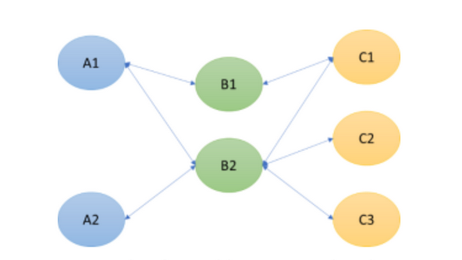
See this video for a demonstration. The Task relations are illustrated in this image. Tasks A1 and A2 do not depend on other Tasks. The lines from left to right represent dependencies; for example, B2 has A1 and A2 as predecessors.
Grouped Task
The Grouped Task classification is used when only a configured number of Tasks from a group have to be finished. The Tasks are siblings and share a server-configured threshold. When the number of finished Tasks reaches the threshold, the remaining Tasks in the group are considered no longer necessary. For the accumulated status of the owning objects, those Tasks are treated as if they were finished.
| The finished state and the no-longer-necessary state are independent. A Grouped Task that is no longer necessary can be either finished or unfinished. Users do not have to finish it, but they still can. |
| The precise status calculation requires information about all sibling Tasks. If some siblings are not available offline, the client cannot determine whether the threshold has been reached. In this situation, the local status calculation treats the available objects as regular Tasks. |
| The client uses the best available status. It uses the status calculated by the server when the client is online and there are no uncommitted local changes on the involved objects. Otherwise, it calculates the status locally based on the available information. |
A Task can be both grouped and sequential. In this case, the group threshold affects when a dependent Task becomes available.
For example, Tasks A1, A2, and A3 can form a group in which only one Task has to be finished. If all three are predecessors of Task B, finishing one of them causes the group threshold to be reached. All three predecessors become no longer necessary and locked, and Task B becomes unlocked.
Procedure Tasks
Procedure Tasks are specialized Sequential Tasks that can also use Grouped Task behaviour and branching within a Procedure Workpackage. Their task-specific behaviour and workflow execution are documented on the Plugin page to avoid duplicating the canonical task documentation.
| For Procedure variants and workflow execution, see Procedure Tasks. For the complete list of base task types, see MRO Task Types. |
MRO Objects with Project Information (WinX only)
 |
THIS WIKI AREA IS DEPRECATED |
|
This content is no longer being maintained and may be outdated. Please refer to Main Page for the most recent information.
|
|

An MRO object other than a Task can contain project information. In this case, the project information and MRO progress are displayed in a bar chart. The start and end dates are displayed on the progress bar. Its length and position, together with the current-date marker, indicate the timeline.
Locking
When an MRO object is locked, it cannot be edited. For further information, see Locked Objects.