(→See also) |
m |
||
| (10 intermediate revisions by 3 users not shown) | |||
| Line 1: | Line 1: | ||
| − | Sync mode is a user configurable setting | + | Sync mode is a user configurable setting that affects how the {{UBIK}} client communicates with {{UBIK}} server. More specifically, it determines when and how the client fetches/commits {{UBIK}} content, or whether to have data communication at all. |
== Possible sync modes == | == Possible sync modes == | ||
| − | There are | + | There are several different modes in {{UBIK}}. Here are their names and defined behaviors: |
| − | * | + | * Auto / Online: content is fetched/committed automatically. This is the default mode. |
| − | * Manual Commit: content is fetched automatically; commit only happens when triggered by users | + | * Manual Commit: content is fetched automatically; commit only happens when triggered by users. This mode is never selected automatically by the client. |
| − | * Offline: content is | + | * Offline: content is fetched/committed only when triggered by users. This mode is automatically selected by the client when [[Sync_Mode#Behavior_on_connection_loss|connection is lost]]. |
| − | + | ||
| − | + | ||
| − | + | ||
| − | + | ||
| − | + | ||
| − | + | ||
| − | + | ||
== Mode switch & indicator == | == Mode switch & indicator == | ||
| − | |||
| − | |||
| − | In | + | In both mobile and desktop client applications, there are three buttons for switching between the different modes. These are located in the global topbar on the UWP client, or the navigation drawer in Mobile. Clicking one of these buttons switches {{UBIK}} to the corresponding sync mode. |
| + | |||
| + | <gallery widths="132" heights="103"> | ||
| + | File:client_syncmodes.png|Client sync mode icons. | ||
| + | </gallery> | ||
| + | |||
| + | == Behavior on connection loss == | ||
| + | If network connectivity is lost while the client is running in Auto/Online mode, the client switches to Offline as soon as the next data operation (fetch/commit) is attempted. It then checks for connectivity every 5 seconds. Once the connection is stable for 15 seconds, the client automatically switches back to Auto/Online mode (usually 15-20 seconds after connectivity returns). | ||
| − | {{ | + | {{Hint|This automatic recovery only happens if the Client was already in Auto/Online (or Manual) mode when the connection dropped. '''If the Client is started or logged in while no network connection is available, it starts directly in Offline mode and stays there''', even once connectivity returns. It then needs to be switched to Auto/Online or Manual mode manually.}} |
== See also == | == See also == | ||
* [[HowTo:Switch to Offline Mode]] | * [[HowTo:Switch to Offline Mode]] | ||
| − | [[Category: | + | [[Category:Client|Sync Mode]] |
| + | [[Category:Pages with broken file links|Sync Mode]] | ||
Latest revision as of 08:13, 6 October 2026
Sync mode is a user configurable setting that affects how the UBIK® client communicates with UBIK® server. More specifically, it determines when and how the client fetches/commits UBIK® content, or whether to have data communication at all.
Possible sync modes
There are several different modes in UBIK®. Here are their names and defined behaviors:
- Auto / Online: content is fetched/committed automatically. This is the default mode.
- Manual Commit: content is fetched automatically; commit only happens when triggered by users. This mode is never selected automatically by the client.
- Offline: content is fetched/committed only when triggered by users. This mode is automatically selected by the client when connection is lost.
Mode switch & indicator
In both mobile and desktop client applications, there are three buttons for switching between the different modes. These are located in the global topbar on the UWP client, or the navigation drawer in Mobile. Clicking one of these buttons switches UBIK® to the corresponding sync mode.
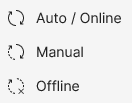
Client sync mode icons.

Behavior on connection loss
If network connectivity is lost while the client is running in Auto/Online mode, the client switches to Offline as soon as the next data operation (fetch/commit) is attempted. It then checks for connectivity every 5 seconds. Once the connection is stable for 15 seconds, the client automatically switches back to Auto/Online mode (usually 15-20 seconds after connectivity returns).
 | This automatic recovery only happens if the Client was already in Auto/Online (or Manual) mode when the connection dropped. If the Client is started or logged in while no network connection is available, it starts directly in Offline mode and stays there, even once connectivity returns. It then needs to be switched to Auto/Online or Manual mode manually. |