
Difference between revisions of "HowTo:Finish/Reset a Task (UBIK Android)"
(→See also) |
|||
| Line 1: | Line 1: | ||
| + | {{DeprecatedStartTag}} | ||
| + | |||
== Finish a Task == | == Finish a Task == | ||
# When a task is open, browse to its content list view or its property list view; | # When a task is open, browse to its content list view or its property list view; | ||
| Line 15: | Line 17: | ||
* [[Task Objects (UBIK Android)]] | * [[Task Objects (UBIK Android)]] | ||
| − | [[Category:Android]] | + | [[Category:Android|Finish/Reset a Task (UBIK Android)]] |
| − | [[Category:How-To]] | + | [[Category:How-To|Finish/Reset a Task (UBIK Android)]] |
Latest revision as of 13:34, 23 June 2026
 |
THIS WIKI AREA IS DEPRECATED |
|
This content is no longer being maintained and may be outdated.
|
|
Finish a Task
- When a task is open, browse to its content list view or its property list view;
- Click the Checkbox or Finish;
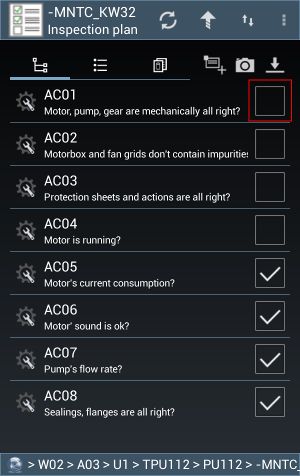
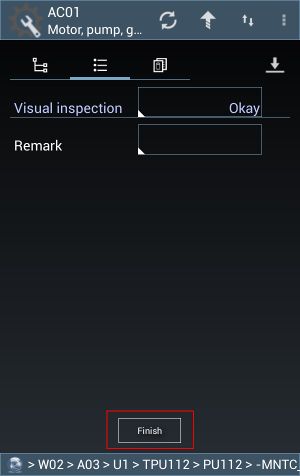
- Enter values for the follow-up property editors and press OK one after another (if there's more than one property to be edited);
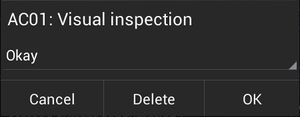


 | Users will remain at the same view where they try to finish the task. In case UBIK® is in automatic mode, the finished task will be immediately committed if user finishes it through a click on the Checkbox. |
Reset a Task
- When a task is finished, browse to its content list view or its property list view;
- Click the Checkbox or Reset;
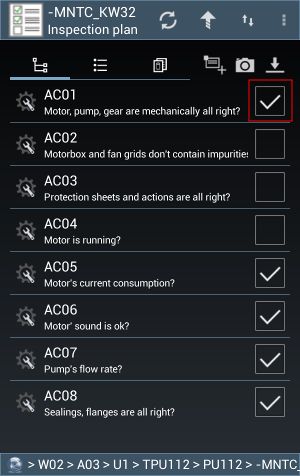
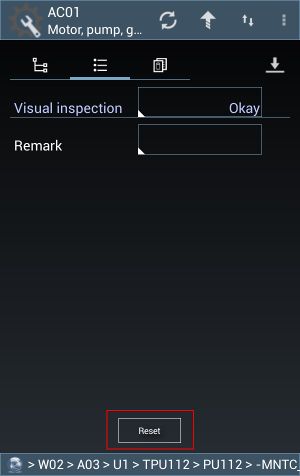


| Similarly, users will remain at the same view and the reset task will be committed in the same manner. |
