
Difference between revisions of "HowTo:Finish/Reset a Task (UBIK Android)"
(→See also) |
|||
| (2 intermediate revisions by the same user not shown) | |||
| Line 13: | Line 13: | ||
== See also == | == See also == | ||
| + | * [[Task Objects (UBIK Android)]] | ||
| − | + | [[Category:Android]] | |
| − | + | ||
| − | [[Category: | + | |
| − | + | ||
[[Category:How-To]] | [[Category:How-To]] | ||
Latest revision as of 15:57, 2 February 2015
Finish a Task
- When a task is open, browse to its content list view or its property list view;
- Click the Checkbox or Finish;
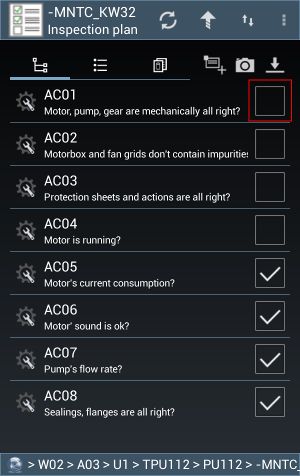
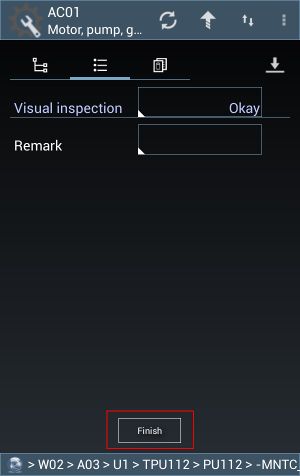
- Enter values for the follow-up property editors and press OK one after another (if there's more than one property to be edited);



 | Users will remain at the same view where they try to finish the task. In case UBIK® is in automatic mode, the finished task will be immediately committed if user finishes it through a click on the Checkbox. |
Reset a Task
- When a task is finished, browse to its content list view or its property list view;
- Click the Checkbox or Reset;
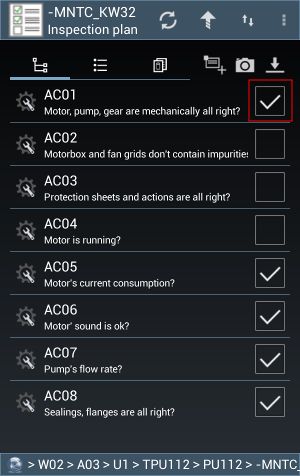
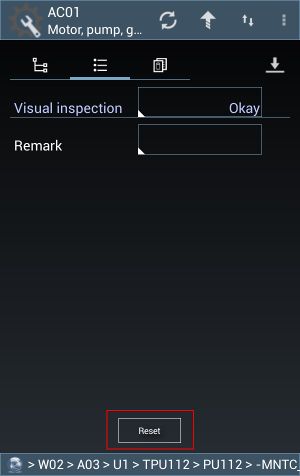


| Similarly, users will remain at the same view and the reset task will be committed in the same manner. |
