
Difference between revisions of "HowTo:Save Settings as Presets"
| Line 1: | Line 1: | ||
| + | {{DeprecatedStartTag}} | ||
| + | |||
In order to save all the settings into a [[Preset|preset]], users have to login first. | In order to save all the settings into a [[Preset|preset]], users have to login first. | ||
| Line 13: | Line 15: | ||
* [[HowTo:Load Presets]] | * [[HowTo:Load Presets]] | ||
| − | [[Category:Android]] | + | [[Category:Android|Save Settings as Presets]] |
| − | [[Category:How-To]] | + | [[Category:How-To|Save Settings as Presets]] |
Latest revision as of 13:48, 23 June 2026
 |
THIS WIKI AREA IS DEPRECATED |
|
This content is no longer being maintained and may be outdated.
|
|
In order to save all the settings into a Preset, users have to login first.
After logging in, perform the following steps:
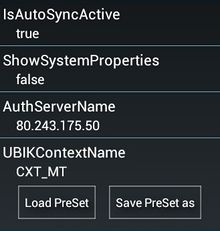
- Go to Settings
- Press Save PreSet as at the bottom of the screen
- Enter a name for the new preset
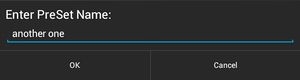
- Press OK to save
- If a preset with the same name already exists, either:
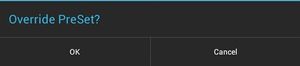
- Press OK to overwrite the existing one or
- Press Cancel and start over with a different name.


